



Cookbook
Replacing images on-the-fly


Problem
Your Screen displays an icon showing a closed folder. If the user clicks on this icon, you would like to replace it with an open folder. If the user clicks again, the original closed folder icon has to be restored.

Solution
Solution 1
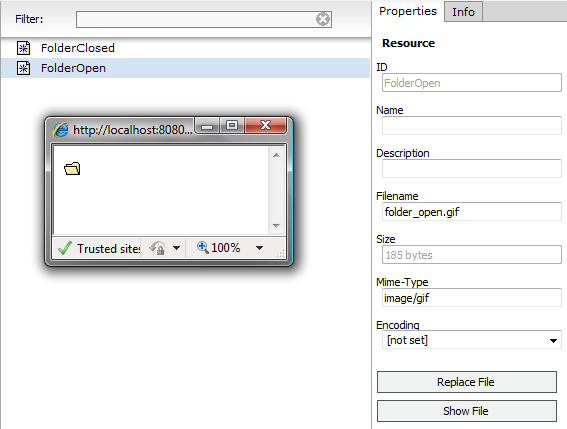
First you will have to upload your icons as Resources. Let's give them the ids "FolderOpen" and "FolderClosed".
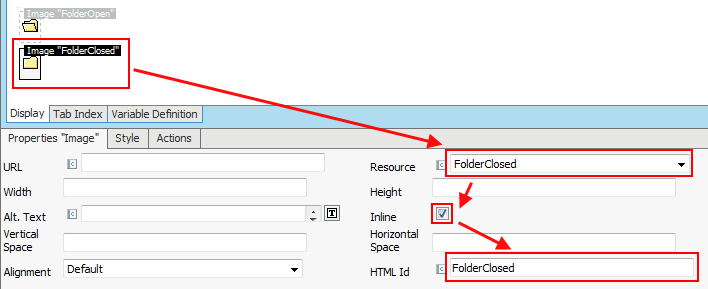
Now we can add these icons to our Screen. Select the Resource, check the Internal checkbox and give both images a unique HTML Id. I suggest using "FolderOpen" and "FolderClosed" as HTML Id.
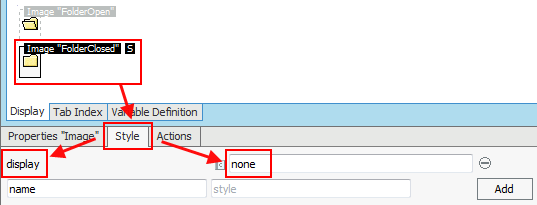
Next, you have to make one of the icons invisible. Select one of the images, go to the "Style" tab and enter "display" as name and "none" as value.
Finally, you have to add the "magic". Add a JavaScript Action to both images with the following code:
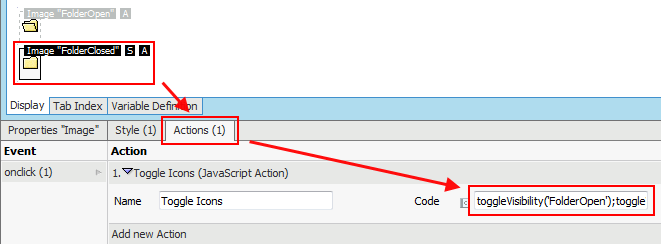
That's it. If you start your Screen, you should see one icon. If you click on it, this icon will be made invisible and the other icon appears.
Solution 2
The first step is identical as in solution 1. You have to upload the two icons as Resources.
Next, you add one image to your Screen. You do not have to define an HTML Id.
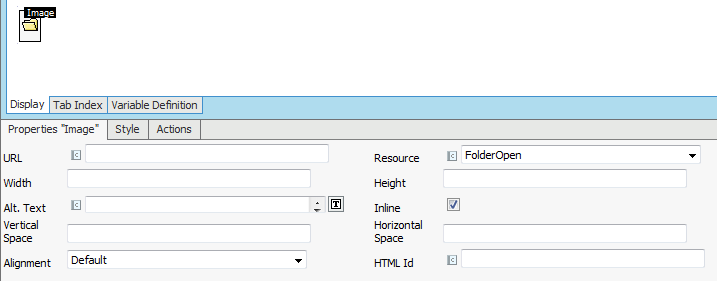
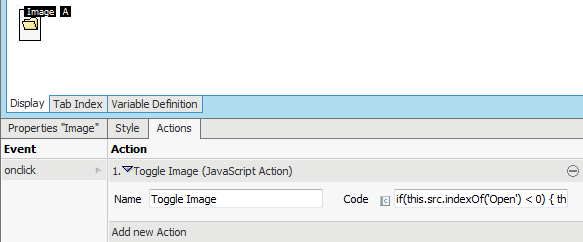
Next, you have to add a JavaScript Action to this image. This action will replace the URL of the image and point to the other icon as soon as the user clicks on the image.
This piece of code checks if the current image URL (HTML attribute "src") already contains the word "Open". If not, the URL is set point to the Resource with the id "FolderOpen". Otherwise it is set to point to the Resource with the id "FolderClosed".
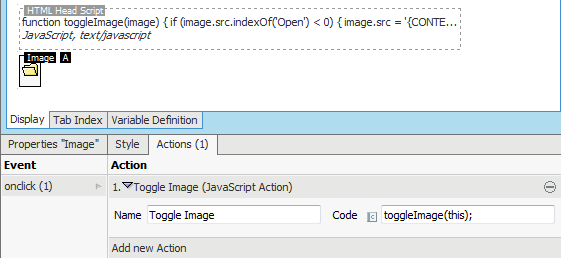
If you have multiple folder icons on your screen, you may put the JavaScript code above in a function and use this function in your JavaScript Action. This is how the function could look like:
You should put this code into an HTML Head Script component and add this to your Screen. Now your JavaScript Actions simply has to execute the following code:
Appendix
A.1 A word from the Author
Personally I prefer the second solution. Why?
A.1.1 Advantages
- It doesn't require an HTML Id.
- The Screen Editor only shows one icon.
A.1.2 Disadvantages
- It requires more JavaScript code.
- The second image is loaded at the moment the user clicks on the icon. With the first solution, both images are loaded at the moment the page is rendered.
- The icon images must have the same size.
You may say: "But there seem to be more disadvantages!"
You're right, but the advantage of not having to define unique HTML Ids is significant. You will see this as soon as you try to use solution 1 on a Screen where you have multiple instances of such "toggle icons".
A.2 Toggle visibility of other sections
Changing the icon isn't very useful. Maybe you would like to make an other section visible or invisible, depending on the state of the folder icon. No problem. Just add an additional JavaScript Action to your icon and toggle the visibility of a Toggle Visibility Area.
A.3 Unique HTML Ids
If you use solution 1 and you have multiple icons on your Screen, you have to make sure that they have unique HTML Ids. If you have a dynamic list of orders to display and you can open and collapse individual orders, why not use the order id as HTML Id for your icons?
Comments (0)
Developer is transitioning to Appway Community
All material for Appway 6 is still available here on developer.appway.com during the transition to Appway Community.
Material for Appway 6.3 and Appway 7 is available in the Knowledge Base on community.appway.com.Note: The Community Blog, our Forum, and the Support system are available exclusively on Appway Community.
Any questions or feedback? Please contact community@appway.com
Material for Appway 6.3 and Appway 7 is available in the Knowledge Base on community.appway.com.
Note: The Community Blog, our Forum, and the Support system are available exclusively on Appway Community. Any questions or feedback? Please contact community@appway.comSee Also
COOKBOOK
URL generation to access resourcesBuilding a simple puzzle game in AppwayPerformance Measuring on an Appway InstallationService Timeout SettingsFORUMDisplay Process/Sub-Process complete action parameterPoint in time of server-side action executionHow toggle worksHandling of errors in variable default expressionsPhase Control