



Cookbook
Toggle visibility area


Problem
In a lot of forms, part of the Screen have to be shown or hidden based on the selections the user makes. Traditionally, this was done using a forced refresh, which redrew the whole screen, evaluated all variables, and drew parts of the screen based on the value of these variables.
This is a clean solution from an engineering perspective, but from a usability perspective, it leaves a bit to be desired: Every time the user changes one of the field triggering a forced refresh, the whole page reloads.
There's a moderately simple solution which avoids forced refreshes, but still lets your show and hide part of a Screen based on the values the user entered. Instead of checking for an element's value inside an If-Component, you do it in an Action on the element itself. Then, based on the element's value, you show or hide "Toggle Visibility Areas".
Solution
1 Complete Example
As an example, let's say we have a Dropdown List with two possible values: True (with id 1) and False (with id 2). If the user selects "True" from the list, we want to show an additional Text Field.
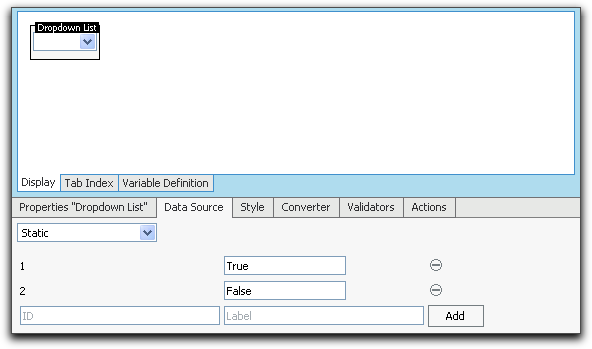
First, drop the Dropdown List into your Screen, add a Static Data Source and add the two possible values:
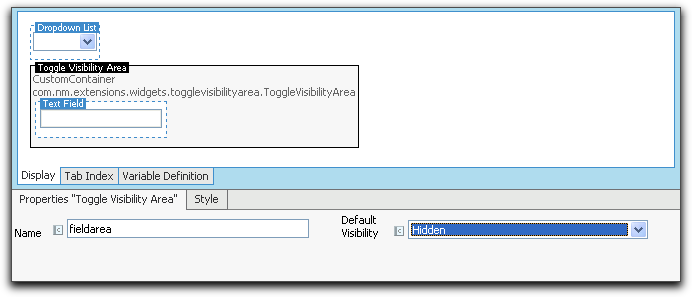
Next, add a Toggle Visibility Area and drop the Text Field inside the Toggle Visibility Area. Give the Toggle Visibility Area a name; I'll use "fieldarea". You can also set the default visibility (usually, you'd set it based on the Dropdown List's binding, but I'll just set it to "hidden").
Finally, we'll have to show and hide the field dynamically. To do so, select the Dropdown List again, click on the "Actions" tab, and add a new JavaScript Action. Set the Action's name to something that makes sense, and enter this code:
Aside: VisibilityArea has a third function called "toggle", which will display the named Area if it's hidden, or hide it if it's shown. We won't need this function in our example.
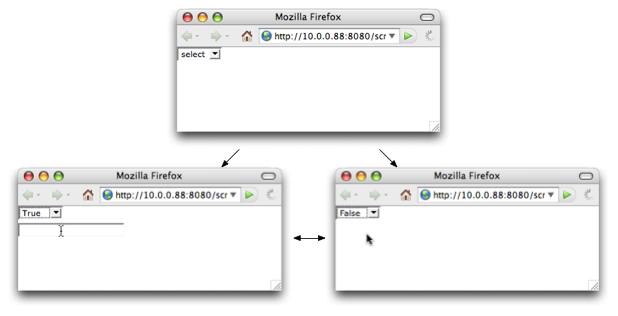
That's all. Save the Screen, and try it out:
2 Some other stuff you might want to know
2.1 Checkboxes
You've already seen how to get the value of a Dropdown List (this.value). How do you know if a Checkbox is checked? You can get the state of a Checkbox in JavaScript using "this.checked".
2.2 Using Head Scripts
The JavaScript Action in our example was awfully long for such a small text field. Here's a better way to do it. Instead of having this big JavaScript code in the Action, simply call a JavaScript function from the action. Enter this as the JavaScript Action:
Now we have to define this function. Drop a HTML Head Script into your Screen and enter this as the code:
Since you can click on the "T" next to the field, you can edit your function in a much more convenient fashion, and you can even use Expressions to write your function.
3 Workaround if you cannot use a Toggle Visibility Area
A Toggle Visibility Area is rendered as element in the HTML code. One problem you may run into is that elements are not allowed everywhere in the HTML structure. For example, it isn't possible to toggle the visibility of a table row or table cell, because the generated HTML code would be invalid.
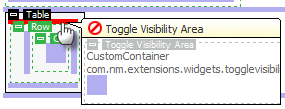
However, there is a simple workaround for most situations. There are only two requirements for components you would like to show and hide:
- The component must have a property "HTML Id"
- The component must support CSS styles
The Row component is a good example for this. First, you will have to give your component a unique HTML Id.
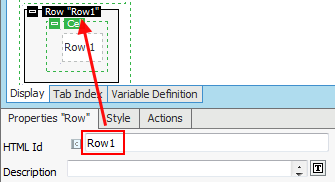
Next, you will need a component to toggle the visibility of your row. Let's use a button for this. Add a JavaScript Action to this button and enter the following code:
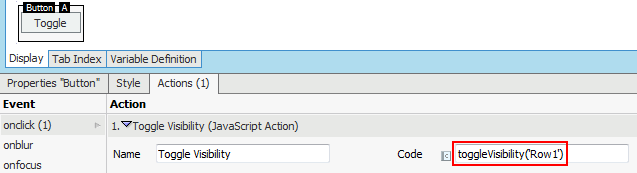
Note that the argument of the function "toggleVisibility" must exactly match the HTML Id of the component you would like to toggle.
That's it. If you click the button, the component with the HTML Id "Row1" becomes invisible.
The JavaScript function "toggleVisibility" is built-in into Appway and doesn't need an extension or anything else to be installed or configured. You can use it to show and hide almost every component which has an HTML Id.
But what if my row in the above example should be hidden on initial display of the screen? No problem. Just add a style with name "display" and value "none" to your component.
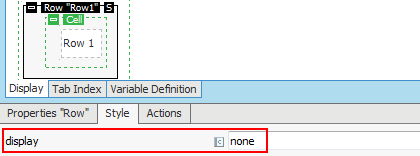
Now your row will be invisible and you first have to click on the button to make it visible.
Comments (2)
Developer is transitioning to Appway Community
All material for Appway 6 is still available here on developer.appway.com during the transition to Appway Community.
Material for Appway 6.3 and Appway 7 is available in the Knowledge Base on community.appway.com.Note: The Community Blog, our Forum, and the Support system are available exclusively on Appway Community.
Any questions or feedback? Please contact community@appway.com
Material for Appway 6.3 and Appway 7 is available in the Knowledge Base on community.appway.com.
Note: The Community Blog, our Forum, and the Support system are available exclusively on Appway Community. Any questions or feedback? Please contact community@appway.comSee Also
COOKBOOK
Ajax Throbber ExplainedCreate Tooltips in ScreensBAM Dashboard Customization: Add a Custom ActionAvoid page refreshing with Ajax Update AreasInvoke client-side actions which rely on server-side actions at the same timeFORUMDisplay Process/Sub-Process complete action parameterPoint in time of server-side action executionHandling of errors in variable default expressionsPhase ControlNew action with PortalWorklist 2.2.10