



Cookbook
Implement a predictive search


Problem
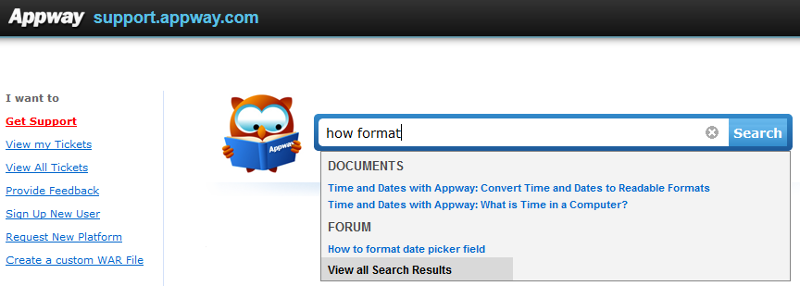
Wondering how to implement a searchable text field with linkable results like you can find it on the Appway Support page?
Solution
1 What do you need?
- Component Extension
- Indexing Extension
Please check the manual for how to configure the Indexing Extension.
2 How to configure the Indexing extension for the Predictive Search example?
When you have read the Indexing Extension's manual you now understand the following configuration values which you have to apply to make this sample work:
Code 1: Indexing Extension configuration
3 The demo
3.1 Its process
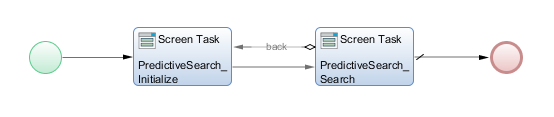
Figure 2: Process 'PredictiveSearch'
The demo consist out of a very easy process. The first screen will let you clear and initialize the index with some simple test data.
The second screen contains the search field which will render the found results.
3.2 The search screen
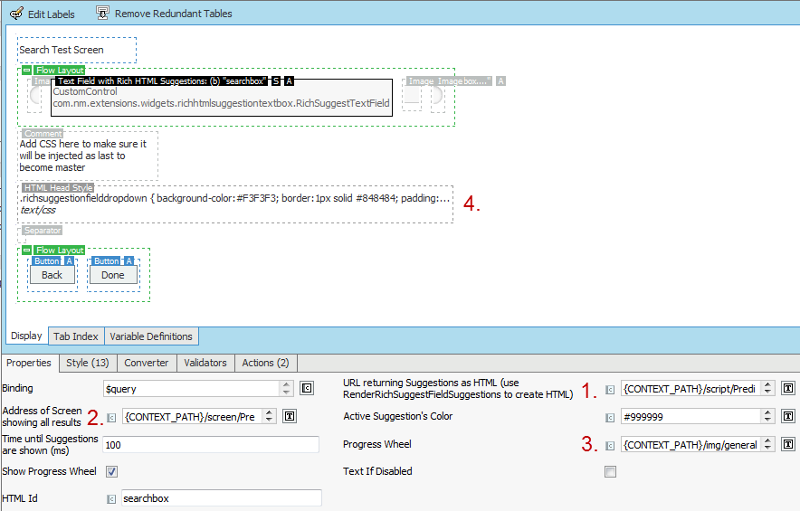
Figure 3: Search screen
The main component used is the 'Text Field With HTML Suggestions' which is provided by the Compnent Extension. The main configuration options will be described in the following:
- URL returning Suggestions as HTML (use RenderRichSuggestFieldSuggestions to create HTML)
Value: '{ CONTEXT_PATH }/script/PredictiveSearch_RenderSearchResults?versionFilter={ VERSION_FILTER }&text='
This parameter defines which Script Function which shall be executed via AJAX. The returned HTML code will be inserted into the current screen and be displayed. The value entered into the text field will be appended automatically to the URL.
In our demo, this Script Function performs the search and renders the search results to HTML. Important: Since every script called via URL is by default protected, this script has to be added to an Access Policy. - Address of Screen showing all results
Value: '{ CONTEXT_PATH }/screen/PredictiveSearch_AllResults?versionFilter={ VERSION_FILTER }&searchtext='
Define the screen which shall be oppened when clicking on 'View all search results'. Again, the search text will be appeneded to this URL and also the refered sceen has to be part of an Access Policy (because of direct call via URL). - Progress Wheel
Value: '{ CONTEXT_PATH }/img/general/waitwheel_small.gif'
Provide an URL to a wait wheel. By default an Appway built-in wait whell is suggested. - Custom CSS
The default 'Text Field With HTML Suggestions' has already some CSS applied. But you may need your own styles. By adding the 'HTML Head Style' below the 'Text Field With HTML Suggestions' you make sure that your custom CSS will be added after the one from the text field. This will enable your styles.
3.3 Test data
To keep this demo small, only three test records were inserted:
Code 2: Test data script
Based on the Indexing Extension configuration the following properties will be searchable:
- group
- text
- title
- content
3.4 Sample search
A sample search may look like in the following picture. Here, the string 'man' was used.
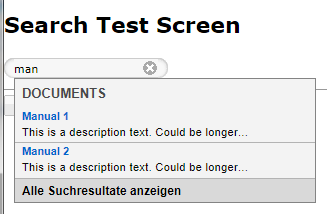
Figure 4: Sample search
4 Download the demo
Find the full demo as download on the Appway Support page: http://bit.ly/zVMdYD
PredictiveSearchExample.awexport
Comments (0)
Developer is transitioning to Appway Community
All material for Appway 6 is still available here on developer.appway.com during the transition to Appway Community.
Material for Appway 6.3 and Appway 7 is available in the Knowledge Base on community.appway.com.Note: The Community Blog, our Forum, and the Support system are available exclusively on Appway Community.
Any questions or feedback? Please contact community@appway.com
Material for Appway 6.3 and Appway 7 is available in the Knowledge Base on community.appway.com.
Note: The Community Blog, our Forum, and the Support system are available exclusively on Appway Community. Any questions or feedback? Please contact community@appway.comSee Also
COOKBOOK
Signature field screen componentMarkdown, BBCode, HTML... What's what?Ajax Throbber ExplainedEasily Creating User DropdownsFORUMPhase ControlDesign login screenStandalone screen without processAdaptive tab: Determine the selected tab using scriptingLeverage browser caching